
how to chat to your waifu guide (10 steps)

Have you ever dreamed of talking to your waifu? Or just role-playing? In the last couple of years, neural networks have been learning very quickly and such an opportunity has appeared based on trained language models! It's not as difficult as it might seem.
Now I will tell you in order how and what to do so that everything works. Let's get started!
All material is opensource and license free-to-use
1 STEP
download and install python
install nodejs
2 STEP
download and unzip SillyTavern webUI from git
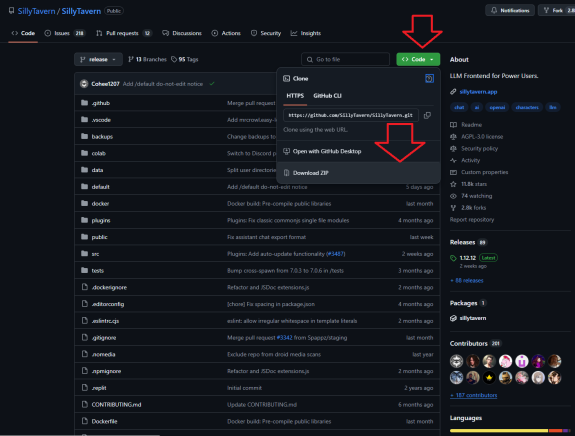
3 STEP
download koboldcpp from git (you can use many analogues of this program, for example I sometimes use lm studio(It has a fairly simple interface and is easy to set up, if you want me to tell you how to connect it, just write a comment))

4 STEP
Your SillyTavern folder will look like this. Just start start.bat

5 STEP
Download and unzip language model from HuggingFace. HuggingFace is our friend for now!
I use L3-8B-Stheno-v3.2-Q4_K_M-imat.gguf model for my PC specs (rtx2070s)
But you can use whatever your system allows.The thing is that for the model to work better it should be completely unloaded into VRAM and RAM. My 8 gigabyte video card can allow using a model with 8 billion parameters with the tag Q4_K_M (It's 4bit)
Let me explain a little.
Q4_K_M - average 4-bit model
Q4_K_S - faster model, but worse quality
The more bits a model has, the better it remembers context and generates text.
That is, the Q8 model is an 8-bit model, which requires large resources, but at the output you get a very high-quality result. But I am happy with my model.
You can download LM Studio and it will show you which models can be completely unloaded into your video memory.
6 STEP
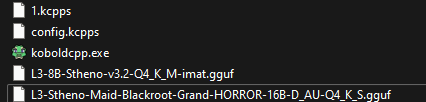
Okay, your koboldcpp folder should look something like this. Don't pay attention to the configs, I made them so I wouldn't have to set up koboldcpp anew each time. In the end, you should have two files, koboldcpp.exe and the language model itself.
7 STEP
Start Start.bat from SillyTavern folder.
The first time it should download all library dependencies. You need to wait a bit. When everything is downloaded - you will see a webUI.

So we are greeted by the web interface. It should look something like this.
8 STEP
Start koboldcpp.exe from koboldcpp folder. The first time it should download all library dependencies.

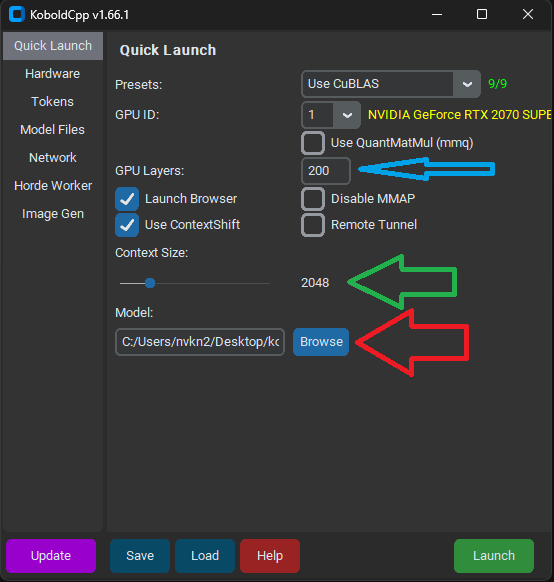
The red arrow shows the path to the model.
The green one indicates the amount of context to remember. In my case, I can set 6144, but I usually set the maximum value for this language model.
The blue arrow shows the number of GPU layers, for some reason it set me 200, but I usually set it in the range of 30-40.

Next, we put check marks as needed, if you hover over a parameter, it will tell you what it does. I put one check mark and save the profile in the koboldcpp folder so that I don’t have to set it up again later. (Remember, each language model has its own settings. If the wrong ones are set, the program will simply crash).
Then simply click the Launch button.
You need to wait a bit. When everything is loaded- you will see a webUI. Close koboldcpp webUI. We don't need to use it.
9 STEP
Let's go back to our main web interface and click on the plug at the top.

We need to connect to the local kobold server. Select the api type koboldcpp, then paste the link that is displayed in your koboldcpp terminal, usually it is the same as mine. Then click connect. You should see a green circle.
Almost everything is ready for use

The left button of the interface shows the settings for generating the model text. Here we can see the context, the number of tokens issued, and so on. Usually, model authors publish the optimal settings in the description of the model, just quickly read the page on HuggingFace.
Next come the prompt settings and so on. Click on the letter A and you will see a menu like this. We are mostly interested in the system prompt. You can choose from the ready ones or customize them yourself to your taste and color. Just try to write according to the template where the {{user}} is you and the {{char}} is absolutely any character.

The button with the smiley is your persona settings. You can create many personalities for yourself and switch between them during a dialogue. Simply describe what you feel or how you want to be perceived.
The rightmost button is the character cards. This is the most interesting part. You can either customize the character yourself or download ready-made ones from any site and import them here.

Red square - creating a new character.
Green - file import.
This list will already contain a couple of ready-made standard models that you can change or delete completely.

This is what the character creation window looks like. In the description, you describe the character, describe his approximate behavior during dialogue, and describe the greeting message.
The button with an extended description allows you to enter the missing data.

THE DIALOGUE EXAMPLE
We try to make the indents between lines the same
<START>
{{char}}: "Hello. I've been waiting for you here for a long time." *He said in a casual voice and manner.*
*A drop of doubt appeared on his face that you would come*
<START>
{{char}}: "You're an idiot!" *He said, blushing with rage*
*He started to pull up his sleeves to give you a good punch*
<START>
10 STEP
Then, when we have set up the character, we simply select it from the list and start chatting. To the left of the text input line, you can set up the chat, delete it, and so on. You just need to spend a little time to study the interface and program settings, it is not difficult.
When you click on the character, we will see his greeting message, which we entered ourselves.


This is how we started communicating with the language model.
As you may have noticed, it changes emotions. This is done as follows. Click the cube button on top - this is the extension button.

Then click "Extensions".
Here we can see that we can change the character's emotion pngs. You can do it yourself, or find ready-made ones for your character. Now I will show you what websites with character presets look like.
https://chub.ai/ - cool card database

This is what the character looks like if you find it on the site. Below on the left we can download the json file and import it into our web interface, we can also download the archive with the character's expressions and also upload it to the appropriate section.
And that's it! Done! You can come up with the craziest story that could ever happen! You are a god or you are a knight, you are strong or you are weak and building up your power, whatever your imagination takes you up on! But don't forget, for chats you are really a god, because you can just come up with a prompt that this happened and it will happen. Good luck and success to you! I hope that I haven't missed anything and have told you everything about how to quickly launch the application.
waifu
aiwaifu
waifuai
sillytavern
languagemodel

LuxBlackSoul
Thanks for the step-by-step
Feb 28 2025 12:25 

1
