
How to create extraordinary shapes from meshes in Adobe Illustrator. Part 1
Everyone knows that meshes in Adobe Illustrator can only be made from rectangles. It’s true, but look at the image below - all these shapes are gradient meshes:

And every object in the picture is single and simple gradient mesh.
Impossible? I've thought so.
But today I can easily make every of these shapes just in a few minutes. And no doubt - you'll be able as well, just read this simple tutorial.
Part One
Step 1:
Select the Ellipse Tool; create a circle (hold down the Shift key while dragging). Set stroke to None and fill circle with ‘Radial Gradient 1’ from default swatches.

Step 2:
Keep circle selected and go to Object > Expand. Select Expand Gradient to Gradient Mesh.

Step 3:
Keep object selected, push mouse right button, select “Ungroup”; right button again, select ‘Release Clipping Mask’.

Step 4:
Keep all objects selected. Take Selection Tool (V), deselect main object (left click on the object fill (not the path) with holding the Shift key). Clip Mask path must stay selected - delete it.

Step 5:
Voila! We’ve got perfect radial gradient mesh!

But where is mesh rectangle? It’s here – twisted into an annulus (ring) the inner radius of which is equal to zero and corner nodes (points) are superposed (overlapped) with each other.

It will be easier to understand - where is rectangle - if we untwist this ring a little.
(next two images):

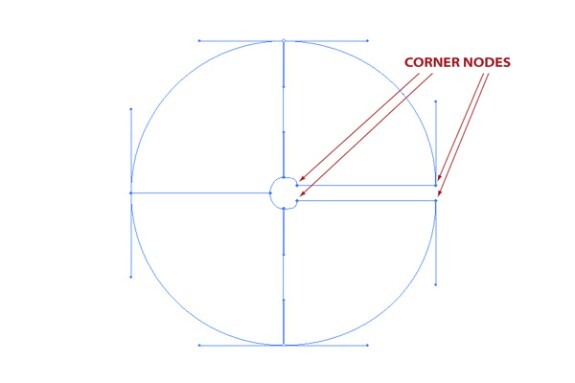
Now we can work with this radial gradient mesh to make different Shapes, conical gradients, mesh arcs and rings. At first let’s make Rainbow Ring.
To be continued...
#design
#graphic design
#designer
#adobe
#illustrator
#vector
#adobe illustrator
#graphic designer